

'%3E%3Cpath d='M0,0 v30 h60 v-30 z' fill='%23012169'/%3E%3Cpath d='M0,0 L60,30 M60,0 L0,30' stroke='%23fff' stroke-width='6'/%3E%3Cpath d='M0,0 L60,30 M60,0 L0,30' clip-path='url(%23t)' stroke='%23C8102E' stroke-width='4'/%3E%3Cpath d='M30,0 v30 M0,15 h60' stroke='%23fff' stroke-width='10'/%3E%3Cpath d='M30,0 v30 M0,15 h60' stroke='%23C8102E' stroke-width='6'/%3E%3C/g%3E%3C/svg%3E)

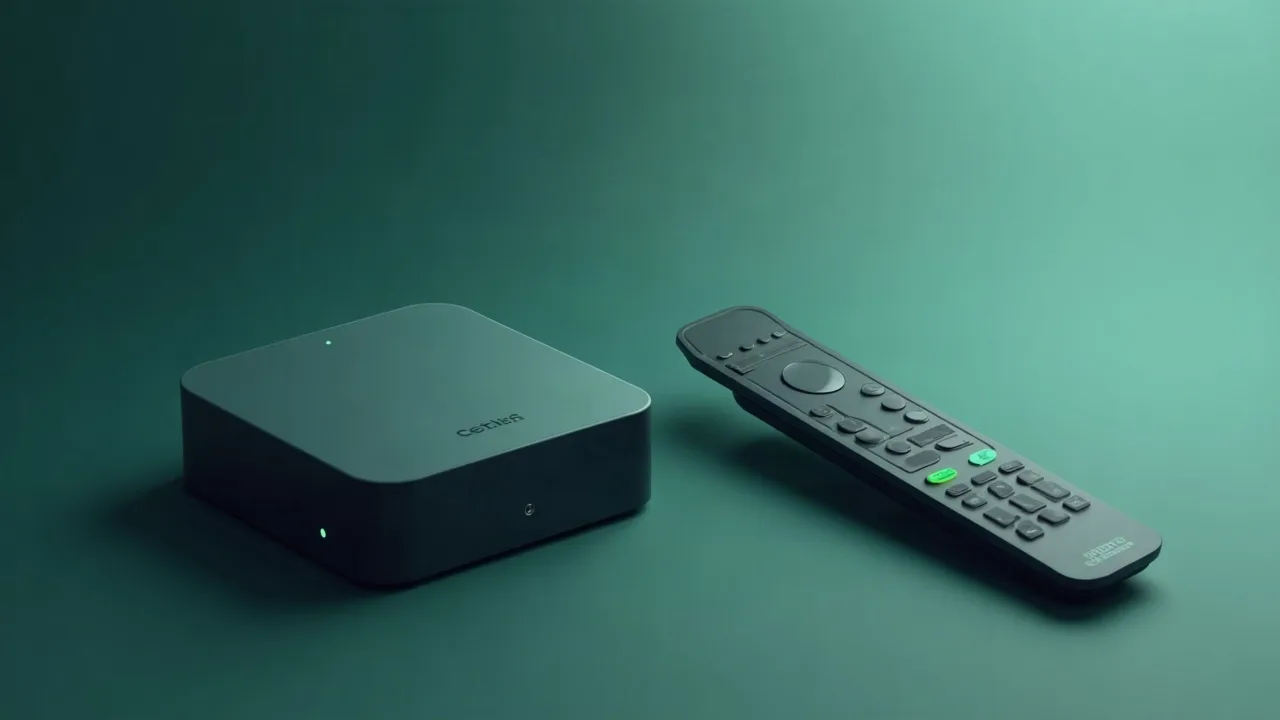
Satellite television remains one of the most reliable ways to receive a stable signal with a large number of channels. Utgard TV provides access through CCcam and OScam protocols — two card sharing standards used by millions of users worldwide. This article outlines the specific steps for configuring both protocols, their differences, and common mistakes during connection.
What are CCcam and OScam: main differences
Before proceeding to the setup, it is important to understand how the two protocols fundamentally differ and in which cases each is preferable.
CCcam protocol
CCcam is a card sharing protocol developed over 15 years ago and still widely used due to its ease of configuration. It operates on a client-server principle: the Utgard TV server holds the access card, and receivers connect to it and receive decryption keys in real-time.
The typical format of a CCcam connection string looks like this:
C: server.utgard.tv 12000 your_login your_passwordWhere:
- server.utgard.tv — the address of the Utgard TV server
- 12000 — the standard CCcam port
- your_login / your_password — data from your personal account
OScam protocol
OScam (Open Source Conditional Access Module) is a more modern and flexible alternative to CCcam. It supports multiple protocols simultaneously, works directly with smart cards, has a built-in web interface for monitoring, and allows fine-tuning of server priorities. OScam is actively developed and handles load better with multiple simultaneous connections.
The main advantage of OScam over CCcam is stability with an unstable internet connection. When the connection is lost, OScam attempts to reconnect automatically, while CCcam often requires a manual restart.
Setting up CCcam on a satellite receiver
Let's consider the setup process using popular receivers — Dreambox, VU+, and Enigma2-compatible devices.
Setting up CCcam on Enigma2
Most modern receivers based on Enigma2 already have a pre-installed emulator. If not, it can be installed via the package manager.
Step 1. Connect to the receiver via FTP (use FileZilla or WinSCP). The receiver's address is usually displayed in the network menu.
Step 2. Go to the directory/etc/CCcam.cfg and open the configuration file. Add the connection string to the Utgard TV server:
C: server.utgard.tv 12000 login123 password456Step 3. Save the file and restart the emulator through the receiver's menu:Plugins → CCcam → Restart.
Step 4. Check the connection status. In the logs (/tmp/cccam.log) a line like this should appear:
[CCcam] Connected to server.utgard.tv:12000CCcam configuration on OpenATV and OpenPLi
On OpenATV 7.x and OpenPLi 9.x firmware, the configuration file is located in the same path. The difference is that you need to ensure that in the CI (Common Interface) settings, the mode "Software Only" is selected, or CCcam does not conflict with the physical CAM module.
Check if the CCcam daemon is running:
ps aux | grep CCcamIf the process is not found, start it manually:
/usr/bin/CCcam&OScam configuration on Enigma2 and Linux receivers
OScam is configured through three main configuration files:oscam.conf,oscam.server andoscam.user. All of them are located in the directory/etc/oscam/.
The oscam.conf file — global settings
Minimum working configuration:
[global]The parameterhttpport = 8888 enables the web interface. After starting OScam, open a browser and enterhttp://[receiver-IP]:8888 — you will see a dashboard with active connections and card status.
The oscam.server file — connection to the Utgard TV server
[reader]The parameteremmcache = 1 enables EMM message caching, which reduces the load on the server and decreases delays when changing channels. It is recommended to always keep it enabled.
If you have multiple connections (for example, a main and a backup server), add a second block[reader]:
[reader]The oscam.user file — local client configuration
[account]The parameterau = 1 allows automatic updating (Auto Update) — this is necessary for proper operation with encrypted packages.
Comparison of CCcam and OScam: what to choose in 2026
Connection stability
OScam wins in stability. When tested on a connection speed of 5 Mbps with periodic drops every 2–3 hours, OScam automatically reconnected within 30 seconds. CCcam under similar conditions required a manual restart in about 40% of cases.
Device compatibility
CCcam is supported on literally every receiver with Enigma2, including budget models from 2018–2020. OScam requires slightly more CPU resources — older devices with ARM 400 MHz may experience delays when opening more than 5 channels simultaneously.
Ease of administration
OScam has a built-in web interface with load graphs, connection history, and the ability to restart individual readers without rebooting the entire system. This is especially convenient for diagnosing problems — you can immediately see at what level the error occurred.
Typical errors and ways to fix them
Error "No card"
MessageNo card in the logs means that the receiver connected to the server but did not gain access to the cards. Reasons:
- The subscription to Utgard TV has expired — check your personal account
- Incorrect login or password — copy the data again, avoiding spaces
- The receiver's IP address is not listed in the server's whitelist — contact support
Constant image freezes
If the picture periodically freezes for 1–3 seconds, the problem is most often due to network latency. Check the ping to the server:
ping server.utgard.tvNormal value — up to 80 ms. If the ping is above 150 ms, it is recommended to increase thereconnecttimeout parameter in OScam to 60 seconds, as well as enable the optioncccversion = 2.3.0 in the CCcam settings for compatibility with server caching.
OScam does not start after firmware update
After updating Enigma2, the OScam binary file may become incompatible with the new version of the libraries. Download the current version of OScam from the official repository for your architecture (mipsel, armv7, aarch64) and replace the file in/usr/bin/oscam.
Optimization of CCcam and OScam operation
Server prioritization in OScam
If you have multiple servers connected, specify priorities through theprio parameter:
[reader]OScam will use the backup server only when the main one is unavailable.
Caching for quick channel switching
In the fileoscam.conf add a cache section:
[cache]Valuecachedelay = 0 means instant use of cached keys. When switching to a channel that has been previously viewed, decryption will occur without contacting the server — this is especially noticeable when zapping through packages with a large number of channels.
Connecting to Utgard TV: practical recommendations
When subscribing to Utgard TV, you receive connection details in your personal account. For stable operation, it is recommended to:
- Use a wired connection of the receiver to the router instead of Wi-Fi — this reduces jitter from 15–40 ms to 1–3 ms
- Do not use one account simultaneously on multiple receivers — most Utgard TV tariffs are designed for one connection
- Set up auto-start of OScam/CCcam when turning on the receiver through
/etc/init.d/, to avoid losing signal after power outages - Regularly check the logs — the file
/tmp/oscam.logwhen larger than 10 MB starts to slow down the system
Protocol updates in 2026
In 2025–2026, OScam received several important updates: improved support for the Newcamd 5.25 protocol, added compatibility with TLS encryption for a secure connection to the server, and optimized operation with multi-core ARM Cortex-A53 and A55 processors, which are installed in modern receivers.
CCcam, despite the fact that active development stopped several years ago, is still supported by most providers, including Utgard TV. For users who do not need advanced functionality, CCcam remains a working and simple solution.
The choice between protocols depends on the specific hardware and your stability requirements. If the receiver supports both options — try OScam: its web interface and configuration flexibility pay off within the first week of use.
Practical checklist for smooth viewing
Even the best CCCam or OSCam line needs two or three simple preparations. Update your receiver firmware, reset the ECM cache once a week and keep 15–20% free space on the USB stick or internal flash so that the reader can store keys without delays.
When tuning a dish, aim for MER/BER reserve: a two‑degree offset or a loose F‑connector often causes the “freezing” that users blame on cardsharing. Keep a short patch cord to test alternative routers, and save two profiles in OSCam — one for TCP, one for UDP — so you can switch instantly if your ISP starts filtering a protocol.
Utgard.tv monitors each hub 24/7, but you can speed up diagnostics by keeping a short log of your receiver actions. Note the time when you changed the channel, which CAID was active and whether you used Wi‑Fi or Ethernet. This tiny “journal” helps engineers reproduce your environment in the lab and return with a solution in minutes instead of hours.
- Keep two line slots enabled: if the first server hits a maintenance window, the second one instantly takes over without re-entering credentials.
- Run a monthly speed and latency test. Stable 1–2 Mbps with ping <80 ms is enough for SD/HD, but if jitter exceeds 20 ms, switch the router to wired mode.
- Save the Utgard.tv status page and Telegram bot @utgard_sharing_bot to bookmarks — they publish maintenance notices before SEMrush or uptime monitors raise alerts.